Track Shifts with Blind Drop Cashiering
Stay is enhanced to allow properties to track shifts with blind drop cashiering. Properties can configure the individual payment methods, transaction items, and currencies that must be reconciled by a cashier when starting or ending a shift. Any overage or shortage will be displayed in the Cashier Activity Report printed with the night audit reports.
Feature Setting
The following new feature setting must be enabled to allow users to configure the Cashier Setup screen and implement all controls associated with cashiering:
-
Name: Enhanced Cashier Activity
-
Value: Must be enabled
-
Comments: License is not required
Permission
The following new permission has been introduced that enforces users to start their shift on logging in to Stay:
|
Field |
Description |
|---|---|
|
Stay_Cashier |
Users with this permission must start their shift upon logging into Stay. Users can continue to use Stay only after they start their shift. This permission is assigned to the following roles by default:
|
|
Stay_Cashier_Approvals |
Only users with this permission can approve a cashier to start shift even if the maximum sign on limit is exceeded and approve a cashier’s cash over/under during end shift when the flag is enabled. This permission is assigned to the following roles by default:
|
|
Stay_AccessCashierSetup1 |
Only users with this permission can access the Cashier Setup screen and update all the sections. This permission is assigned to the following roles by default:
|
|
Stay_AccessCashierSetup2 |
Only users with this permission can access the Cashier Setup screen and update all the sections except Shift Tracking, Blind Drop, Cash Over/Under, Shared Cash Drawer. This permission is assigned to the following roles by default:
|
When the Enhanced Cashier Activity feature setting is enabled and a user with the Stay_Cashier permission logs in, a Cash Drawer must be set up to allow the logged in user to use Stay. If a Cash Drawer is not set up, the user will be blocked from using Stay.
Start Shift
Users will be prompted to enter their starting shift balances the first time they log in after the previous shift was closed. The shift balances cannot be modified after they have been entered, and so the associate will be prompted to confirm their balances before proceeding. The start date and time will be captured and associated to the user for that shift. When a user with the Stay_Cashier permission logs in to Stay, they will be prompted to start their shift by entering the required details in the Start Shift screen.
Refer to the following table to enter details in the Start Shift screen when starting a shift:
|
Field |
Description |
|---|---|
|
Cashier Name |
Displays the username of the cashier logged in to Stay. |
|
Cash Drawer |
Select a cash drawer from the drop-down list. This field is mandatory. If a cashier is sharing a drawer, starting balances are not required; users can proceed to save, and other input fields will be disabled. When cash drawers are not configured in the Cashier Setup section and a cashier tries to start their shift, they will be displayed the following message: No cash drawers found for this property. Please configure under cashier setup to start your shift. |
|
Use Denomination Tracker |
The property can configure whether the denomination tracker must be made mandatory or not. If the property decides to use the denomination tracker mandatorily the Use Denomination Tracker checkbox will not be displayed in the Start Shift screen and users will be forced to use the denomination tracker always. |
|
Cash Total |
|
|
Other |
This is a multi-select drop-down list of all other payment methods that are of the Cash payment class other than the Cash payment method itself. Users can select the preferred payment methods and enter the starting balance for each method. |
|
Other Total |
Displays the sum which is auto calculated for all other payment methods of the Cash payment class entered by the user. This field cannot be edited. |
|
Foreign Currency |
|
|
Foreign Currency Total |
Displays the sum of all amounts in the local currency entered for every foreign currency selected. This is a non-editable field. |
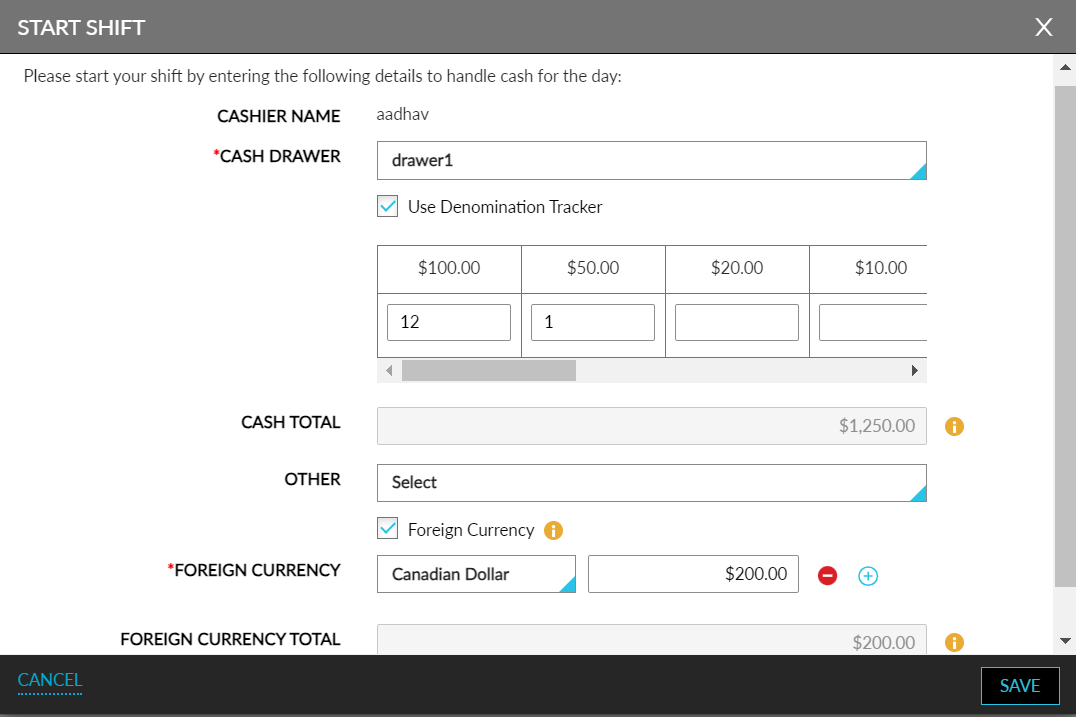
When a user tries to start their shift beyond the configured cash limits, they are required to obtain approval from the supervisor. Users with the Stay_Cashier_Approval permissions can approve a cashier to start the shift even if the maximum cash limit during sign in has exceeded. For this, the Exceed Cashier Shift Limit pop-up screen is displayed that allows supervisors to authenticate themselves with their credentials. If credentials are incorrect or the user does not have sufficient permissions the following message is displayed: User does not have the required permission.
When the feature setting is enabled and the option to track shifts is enabled in the Cashier Setup for the property, cashiers will be restricted from making cash payments without starting their shifts from the following sections in Stay:
-
Booking flow
-
Folio in reservations
-
Scheduled deposits
-
Groups folios
-
Checkout ➜ Deposit Policy
-
Cancel Reservation ➜ Cancellation Policy
-
Batch Operations: Check-In, Settle, Checkout Folio, Deposit Dues
-
Front Desk ➜ Pantry
-
Night Audit - Collect Deposit, Cancellation/No Show has Cancellation
-
Company Accounts
-
House Accounts
-
Rooms Management ➜ Lost & Found ➜ Shipper Details
-
Estimated Charges ➜ Collect Deposit Due
-
Group ➜ Deposit Due ➜ Collect deposit due
End Shift
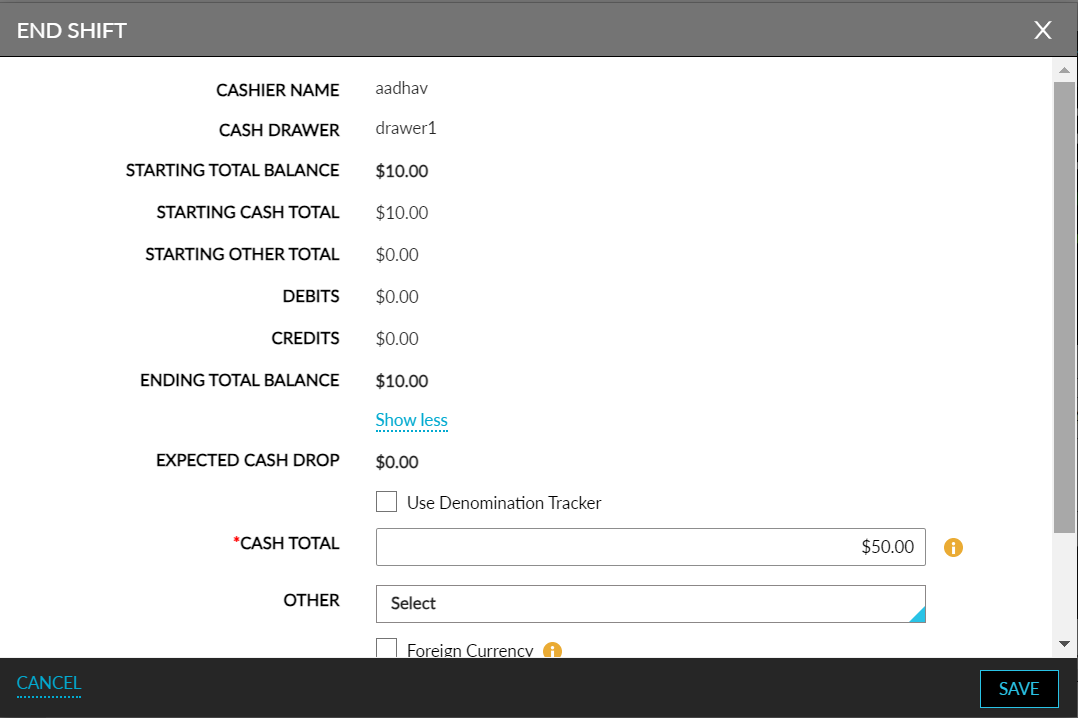
Users can close their shift at any time. During closure, users will be prompted to reconcile their ending balances for each of the payment methods, transaction items, and currencies configured. The following additional information will be displayed to help users reconcile:
-
Starting balance
-
Debit balance
-
Credit balance
-
Ending balance
Refer to the following table to enter details in the End Shift screen when starting a shift:
|
Field |
Description |
|---|---|
|
Cashier Name |
Displays the username of the cashier logged in to Stay. |
|
Cash Drawer |
Displays the name of the cashier drawer selected by the cashier during the start of the shift. If the cashier has selected a shared drawer, closing balances are not required; users can proceed to save, and other input fields will be disabled. |
|
Starting Total Balance |
Displays the total balance as entered by the cashier when the shift was started. |
|
Show More |
Click the hyperlink to expand and view the other system-generated balances |
|
Starting Cash Total |
Displays the Cash Total amount as per the start of shift. |
|
Starting Other Total |
Displays the Other Total amount as per the start of shift. |
|
Starting Foreign Currency Total |
Displays the Foreign Currency Total amount as per the start of shift. |
|
Debits |
Displays the sum of refunds performed by the cashier. This amount will include only the cash payment method. |
|
Credits |
Displays the sum of payments made by the cashier. This amount will include only the cash payment method. |
|
Ending Total Balance |
Displays the ending balance in total for the cashier. The amount is calculated by adding the difference between the credits and the debits and the Total Starting Balance. That is (Credits – Debits) + Total Starting Balance. |
|
Show Less |
Click the hyperlink to close the expanded view of other system-generated balances. |
|
Expected Cash Drop |
The sum of the Expected Cash Drop of cashiers who have previously ended their shift using the same drawer + the total of all debit/credit transactions in cash for the cashier who has currently logged in to end the shift. |
|
Use Denomination Tracker |
The property can configure whether the denomination tracker must be made mandatory or not. If the property decides to use the denomination tracker mandatorily the Use Denomination Tracker checkbox will not be displayed in the End Shift screen and users will be forced to use the denomination tracker always. |
|
Cash Total |
|
|
Other |
This is a multi-select drop-down list of all other payment methods that are of the Cash payment class other than the Cash payment method itself. Users can select the preferred payment methods and enter the starting balance for each method. |
|
Other Total |
Displays the sum which is auto calculated for all other payment methods of the Cash payment class entered by the user. This field cannot be edited. |
|
Foreign Currency |
|
|
Foreign Currency Total |
Displays the sum of all amounts in the local currency entered for every foreign currency selected. This is a non-editable field. |
|
Total Entered Balance |
Displays the sum of cash total, other cash totals, and the foreign currency totals. |
|
Cash Drop |
User can enter the amount of cash dropped in the safe. |
-
When the property has turned off blind drop cashiering and when the user clicks Save, a new page displaying the Cashier End Activity Report is opened. When ending the shift, the date and timestamp are captured upon saving.
-
When the property has turned on both the options of shift tracking and blind drop cashiering and when users click Save, only users with the Stay_Run_Cashier_Report permission assigned will have the Cashier End Activity Report displayed in a new page. Users without this permission will not be able to access the Cashier End Activity reports.
-
When the property has turned on the blind drop cashiering option, users will be displayed the ending balance-related fields on the screen, and fields such as Starting Balances, Debits, Credits, and so on will not be displayed to the cashiers.
Alert for Cash Balance Variance
When the value displayed in the Ending Total Balance and the value entered in the Total Entered Balance do not match, the following alert is displayed to the user: Please note that there is a cash balance variance noted upon end shift. You will require approval from a supervisor to end your shift.
When the property has enabled the option to allow users to override cash overage or shortage, users must authenticate themselves before ending the shift with a variance in cash balance. The option to override will not be permitted when the property has the blind drop cashiering option enabled.
Configure Cashier Setup
A new screen, Cashier Setup, is added under the Administration menu of the Settings screen to allow users to configure default settings for the cashier setup (Settings ➜ All Settings ➜ Administration ➜ Cashier Setup). Only users with the Stay_Access_Cashier_Setup1 and/or Stay_Access_Cashier_Setup2 permission can access the Cashier Setup screen. Any updates made in the Cashier Setup screen will be effective only after the date roll.
Users can configure the settings for the following from this screen:
-
General Configuration
-
Max Start Shift
-
Cash Drawer Configuration
-
Other Cash Configuration
General Configuration
This section allows users to turn on/off cashier activities like shift tracking, blind drop cashiering, configure shared cash drawers, enable the option to permit cash overage/shortage, and configure the denomination tracker to be mandatory. By default, shift tracking will be enabled. When blind drop cashiering is enabled for the property, then the option to permit cash overage/shortage will be disabled.
Refer to the following table to configure the fields in this section:
|
Field |
Description |
|---|---|
|
Shift Tracking |
Enable the flag to enable shift tracking for cashiers logging in to Stay. |
|
Blind Drop |
Enable the flag to enable blind drop cashiering for the property.
|
|
Cash Over/Under |
Enable the flag to permit cashiers to override cash overage or shortage. This flag will be disabled when the property has enabled blind drop cashiering, and the cashier will not be able to override cash overage or shortage. |
|
Shared Cash Drawer |
Enable the flag to allow the sharing of a cash drawer with more than one cashier. |
|
Denomination Tracker Mandatory |
Enable the flag to enforce users to use the denomination tracker during the start and end of the shift. |
Max Start Shift
This section allows users to configure the maximum number of times a cashier can start and end a shift in a business day.
Click Add to configure a limit for a cashier. Refer to the following table to configure the fields in this section:
|
Field |
Description |
|---|---|
|
Active |
Enable the checkbox to activate the limit. |
|
Limit |
Configure the cashier limits from 1 to 10 or set the option to No Limit from the list of values displayed in the drop-down list. Once a limit is configured, the selected limit will not be displayed again in the list of values. The No Limit option cannot be made inactive. |
|
Roles |
Select the roles for the limit from the multi-select drop-down list. The drop-down list will include those roles that have the Stay_Cashier permission mapped to the role. User roles and limits are assigned uniquely and cannot be duplicated. The Show more hyperlink will be displayed if there are more roles to view for that limit. |
To edit an existing limit, click the name of the limit that is hyperlinked.
Cash Drawer Configuration
This section allows users to configure the cash drawer for cashiers. If the property has enabled the Share Cash Drawer flag, cashiers can share the drawers configured under this section during the start and end shifts. Only active drawers will be available for selection in the Start Shift screen. Click Add to add a new cash drawer.
Refer to the following table to configure the fields in this section:
|
Field |
Description |
|---|---|
|
Active |
Enable the checkbox to activate the cash drawer. |
|
Name |
Enter a name for the cash drawer. Users can enter up to 200 characters in alphanumeric. |
To edit an existing cash drawer, click the name of the cash drawer that is hyperlinked.
Other Cash Configuration
This section allows users to configure other payment methods that are of the cash payment class. These payment methods are used only for cashier activity (Start Shift and End Shift) and will not be displayed in the Guest Accounting section. Some examples include petty cash, coupons, tokens, and so on. Click Add to add a new cash payment method.
Refer to the following table to configure the fields in this section:
|
Field |
Description |
|---|---|
|
Active |
Enable the checkbox to activate the cash payment method. |
|
Name |
Enter a name for the cash payment method. Users can enter up to 200 characters in alphanumeric. |
|
Code |
Enter a code for the cash payment method. Users can enter up to 10 characters in alphanumeric. The entered code must unique and cannot be duplicated.
|
To edit an existing cash payment method, click the name of the cash payment method that is hyperlinked.
Manage Open Cashier Shifts During Date Roll
The Night Audit screen is enhanced to include the following updates relating to shift tracking for cashiers:
-
A new section, Open Cashier Shifts, is added to the Date Roll screen (Night Audit ➜ Date Roll) to notify the night auditor of the open cashier shifts during date roll. This section displays information about the cashiers who are yet to end their shifts and the timestamp of when they started their shift. The following details will be displayed in this section:
|
Field |
Description |
|---|---|
|
Cashier Name |
The username of the cashier who has an open shift. |
|
Start Shift Time |
The start date and time of the shift based on the date and time format configured in the Property Setup section (Property Setup ➜ Language & Locale). |
At the time of date roll, the following alert is displayed to the night auditor if there are cashiers with open shifts: Please note that there are open cashier shifts. To proceed with date roll, click YES upon date roll.
-
A new section, Open Cashier Shifts, is added to the Auto Date Roll screen (Night Audit ➜ Auto Date Roll). This section allows users to configure the default setting for open cashier shifts when performing an automatic date roll. The following two options are available:
|
Field |
Description |
|---|---|
|
End cashier shifts on date roll |
When selected, Stay will end any cashier shifts that are open and then the date roll is performed. |
|
Stop auto date roll on open cashier shifts |
When selected, Stay will stop date roll when there are open cashier shifts. |
-
Error logs for open cashier shifts when automatic date roll takes place are displayed in a new section, Open Cashier Shifts, in the Auto Date Roll Error Log section (Night Audit ➜ Auto Date Roll Error Log). The logs display the username of the cashier and the start time of the shift for the cashiers who have an open cashier shift.
-
A new tab, Date Roll Event Log, is added to the Night Audit menu. This tab will be displayed only when feature setting is enabled and the Shift Tracking flag is enabled in the Cashier Setup. The tab displays a section, Auto Closed Cashier Shifts on Date Roll. When the night auditor chooses to proceed with the date roll despite open cashier shifts, or when an auto date roll occurs with the End cashier shifts on date roll option selected, then the end time of the shift is captured and displayed as the timestamp for the date roll in this section. This section will display the cashier’s username and the start shift timestamp and end shift timestamp. This will be available only until the next date roll occurs.
Enhancements to Cashier Activity Report
The Cashier Activity Report has been enhanced to allow users to generate the report with or without the blind drop cashiering option enabled.
Generate Report with Blind Drop Cashiering Disabled
When the cashier ends the shift after entering the end shift details and clicks Save, a new page is displayed with the Cashier Activity Report. This report displays the following details:
Property Name: Current property name
Report Name: 'Cashier Activity Report'
Property Date: Current property date
Cashier Name: Username as per 'User Accounts' configuration.
Cash Drawer Name: Name of the cash drawer selected during start shift.
Shared Cash Drawer: Yes/No value. If the cashier started the shift by sharing a cash drawer, then Yes, else No.
START SHIFT DETAILS:
Cash Total: As per start shift screen.
Other Total: As per start shift screen.
Foreign Currency Total: As per start shift screen.
Total Starting Balance: As per start shift screen.
Start Shift Time: Start shift timestamp as per date/time configuration under property setup -> language & locale
END SHIFT DETAILS:
Debits: As per end shift screen.
Credits: As per end shift screen.
Ending Balance: As per end shift screen.
Total Entered Balance: As per end shift screen.
End Shift Time: End shift timestamp as per date/time configuration under property setup -> language & locale
CASH DROP DETAILS:
Expected Cash Drop: As per end shift screen.
Cash Drop: As per end shift screen.
Cash Over/Under: If 'CASH OVER/UNDER' toggle is on and there is a cash balance variance then this field should show Yes if there is a variance, else No.
Approved By: If 'CASH OVER/UNDER' toggle is on and there is a cash balance variance, then this field should give the username of the approved user as configured in the 'User Accounts'.
Generate Report with Blind Drop Cashiering Enabled
Only users with the Stay_Run_Cashier_Report permission can download the generated report. Users without permission cannot download the report.
System Changes
To support this enhancement, the following changes have been made:
-
A new screen, Cashier Setup, is added under the Administration menu of the Settings screen (Settings ➜ All Settings ➜ Administration ➜ Cashier Setup).
-
A new section, Open Cashier Shifts, is added to the Date Roll screen (Night Audit ➜ Date Roll).
-
A new section, Open Cashier Shifts, is added to the Auto Date Roll screen (Night Audit ➜ Auto Date Roll).
-
A new section, Open Cashier Shifts, is added to the Auto Date Roll Error Log section (Night Audit ➜ Auto Date Roll Error Log).
-
A new tab, Date Roll Event Log, is added to the Night Audit menu.